Data Administration
The data administration module provides a range of functions to ensure that the data stored in the DHIS2 database is integral and that the database performance is optimised. These functions should be executed on a regular basis by a data administrator to ensure that the quality of the data stored is optimal.
Data integrity
DHIS2 can perform a wide range of data integrity checks on the data contained in the database. Identifying and correcting data integrity issues is extremely important for ensuring that the data used for analysis purposes is valid. Each of the data integrity checks that are performed by the system will be described, along with general procedures that can be performed to resolve these issues.
Data elements without data set
Each data element must be assigned to a data set. Values for data elements will not be able to be entered into the system if a data element is not assigned to a data set. Choose Maintenance->Datasets->Edit from the main menu and then add the "orphaned" data element to the appropriate data set.
Data elements without groups
Some Data Elements have been allocated to several Data Element Groups. This is currently not allowed, because it will result in duplication of linked data records in the analytics record sets that provide aggregated data. Go to Maintenance -> Data Element Groups to review each Data Element identified and remove the incorrect Group allocations.
Data elements violating exclusive group sets
Some data elements have been allocated to several data element groups that are members of the same data element group set. All group sets in DHIS2 are defined as exclusive, which means that a data element can only be allocated to one data element group within that group set. Go to Maintenance -> Data elements and indicators -> Data element groups to review each data element identified in the integrity check. Either remove the data element from all groups except the one that it should be allocated to, or see if one of the groups should be placed in a different group set.
Data elements in data set but not in form or sections
Data elements have been assigned to a data set, but have not been assigned to any sections of the data set forms. All data sets which use section forms, should generally have all data elements in the data set assigned to exactly one section of the dataset.
Data elements assigned to data sets with different period types
Data elements should not be assigned to two separate data sets whose period types differ. The recommended approach would be to create two separate data elements (for instance a monthly and yearly data element) and assign these to respective datasets.
Data sets not assigned to organisation units
All data sets should be assigned to at least one organisation unit.
Sections with invalid category combinations
Data sets which use section forms should only have a single category combination within each section. This violation could result from assigning a data element to a section, but then changing the category combination of this data element at a later point in time.
Indicators with identical formulas
Although this rule will not affect data quality, it generally does not make sense to have two indicators with the exact same definition. Review the identified indicators and their formulas and delete or modify any indicator that appears to be the duplicate.
Indicators without groups
All data elements and indicators must be assigned to at least one group, so these Indicators need to be allocated to their correct Data Element and Indicator Group. From the main menu, go to Data elements/Indicators -> Indicator Groups, and allocate each of the `Orphaned` indicators to its correct group.
Invalid indicator numerators
Violations of this rule may be caused by an incorrect reference to a deleted or modified data element. Review the indicator and make corrections to the numerator definition.
Invalid indicator denominators
Violations of this rule may be caused by an incorrect reference to a deleted or modified data element. Review the indicator and make corrections to the denominator definition.
Indicators violating exclusive group sets
Some indicators have been allocated to several indicator groups that are members of the same indicator group set. All group sets in DHIS2 are defined as exclusive, which means that an indicator can only be allocated to one indicator group within that group set. Go to Maintenance -> Data elements and indicators -> Indicator groups to review each indicator identified in the integrity check. Either remove the indicator from all groups except the one that it should be allocated to, or see if one of the groups should be placed in a different group set.
Duplicate periods
If periods have been imported from external applications, it may be possible that some periods will be duplicated. If you have any periods which appear to be duplicated here, you will need to resolve these directly in the DHIS2 database. All data which has been assigned to the duplicated period, should be moved to the correct period, and the duplicate period should be removed.
Organisation units with cyclic references
Organisation units cannot be both parent and children of each other, directly nor indirectly. If this situation occurs, you will need to resolve the cyclic reference directly in the DHIS2 database in the "organisation unit" table, by reassigning the "parentid" field of the organisation units.
Orphaned organisation units
All organisation units must exist within the organisation unit hierarchy. Go to Organisation units -> Hierarchy Operations and move the offending organisation unit into the proper position in the hierarchy.
Organisation units without groups
All organisation units must be allocated to at least one group. The problem might either be that you have not defined any compulsory OrgUnit Group Set at all, or that there are violations of the compulsory rule for some OrgUnits . NOTE: If you have defined no compulsory OrgUnit Group Sets, then you must first define them by going to Organisation units->Organisation unit group sets and define at least one compulsory Group Set (the group set 'Type' are nearly universally relevant). If you have the relevant group sets, go to Maintenance -> OrgUnit Groups to review each OrgUnit identified and add the relevant Group allocation.
Organisation units violating compulsory group sets
These organisation units have not been assigned to the any organisation unit group within one of the compulsory organisation unit group sets. When a group set is defined as compulsory, it means that an organisation unit must be allocated to at least one organisation unit group within that group set. For instance, all organisation units must belong to one of the groups in the 'Type' group set. It might belong to the `Hospital` or the `Clinic` or any other 'type' group - but it must belong to exactly one of them. Go to Organisation units->Organisation unit groups to review each organisation unit identified in the integrity check. Allocate all organisation units to exactly one compulsory group.
Organisation units violating exclusive group sets
Some organisation units have been allocated to several organisation unit groups that are members of the same organisation unit group set. All group sets in DHIS2 are defined as exclusive, which means that an organisation unit can only be allocated to one organisation unit group within that Group Set. For instance, one organisation unit cannot normally belong to the both the 'Hospital' and 'Clinic' groups , but rather to only to one of them. Go to Organisation unit->Organisation unit groups to review each organisation unit identified in the integrity check. Remove the organisation units from all groups except the one that it should be allocated to.
Organisation unit groups without group sets
The organisation unit groups listed here have not been allocated to a group set. Go to Maintenance->Organisation unit->Organisation unit group sets and allocate the Organisation unit group to the appropriate group set.
Validation rules without groups
All validation rules must be assigned to a group. Go to Maintenance app > Validation rule group and assign the offending validation rule to a group.
Invalid validation rule left side expressions
An error exists in the left-side validation rule definition. Go to Maintenance app -> Validation rule and click Edit on the offending rule. Click Left side and make the required corrections.
Invalid validation rule right side expressions
An error exists in the right-side validation rule definition. Go to Maintenance app -> Validation rule and click Edit on the offending rule. Click Right side and make the required corrections.
ProgramRules with no condition
Report will highlight all the Program rules not configured with Condition. Evaluation for rules not having condition are always evaluated as false.
ProgramRules with no priority
Report will highlight all the Program rules not configured with Priority. This is optional but its existence is very important when ProgramRuleActionType is ASSIGN. Rules with ASSIGN action type should have higher priority then the rest of the action types.
ProgramRules with no action
Report will highlight all the Program rules not configured with any ProgramRuleAction.
ProgramRuleVariables without dataElements
Report will highlight all the Program rule variables not configured with DataElement. Report will be based on source type configuration. DataElement should be provided when the source type of ProgramRuleVariable is DataElement.
ProgramRuleVariables without attributes
Report will highlight all the Program rule variables not configured with TrackedEntityAttribute. Report will be based on source type configuration. TrackedEntityAttribute should be provided when the source type of ProgramRuleVariable is Attribute.
ProgramRuleActions with no data Objects.
Report will highlight all the Program rule actions not configured with any Data object. Data object can be either DataElement of TrackedEntityAttribute. There are certain ProgramRuleActions which are responsible for assigning values to either dataElement or trackedEntityAttribute.
ProgramRuleActions with no notification
Report will highlight all the Program rule actions which have ProgramRuleActionType set to SENDMESSAGE/SCHEDULEMESSAGE where the configuration does not provide any link to notification.
ProgramRuleActions with no section id
Report will highlight all the Program rule actions which have ProgramRuleActionType set to HIDESECTION but configuration does not provide any section id.
ProgramRuleActions with no program stage id
Report will highlight all the Program rule actions which have ProgramRuleActionType set to HIDEPROGRAMSTAGE but configuration does not provide any program stage id.
Invalid program indicator expression
Reports all the violations in program indicator expression caused by invalid DataElement or invalid TrackedEntityAttribute.
Invalid program indicator filter expression
Reports all the violations in program indicator filter expression caused by invalid DataElement or invalid TrackedEntityAttribute.
Tracked entity attributes having a suboptimal search configuration
Reports all tracked entity attributes with suboptimal configuration, which could potentially result in slower search performance when searching for tracked entities using those attributes.
Partial trigram indexes on trackedentityattributevalue in sync with the tracked entity attribute
Reports all tracked entity attributes that are not in sync with the trigram index in the database. This means that some indexes may need to be created, deleted, or both.
Tracked entity attributes with a partial trigram index created
Reports all tracked entity attributes that have a partial trigram index in the trackedentityattributevalue table.
Maintenance
Table: Data maintenance functions in the Data Administration app
| Function | Description |
|---|---|
| Clear analytics tables | Completely empties the analytics tables. These tables are used to generate aggregate data for the pivot tables, GIS and reports. |
| Analyze analytics tables | Performs a PostgreSQL analyze operation on all analytics tables. |
| Remove zero data values | Removes zero data values from the database. Values registered for data elements with aggregation operator average is not removed, as such values will be significant when aggregating the data, contrary to values registered for data elements with aggregation operator sum. Reducing the number of data values will improve system performance. |
| Permanently remove soft deleted data values / events / enrollments / tracked entity instances | When a data value is deleted in DHIS2, the system will mark the corresponding database row as deleted, and not actually delete the row. Running this maintenance function will physically remove these data value rows from the database. |
| Prune periods | Removes all periods which have no registered data values. Reducing the number of periods will improve system performance. |
| Remove expired invitations | Will delete users which represent user account invitations that now have gone past their expiry date. |
| Drop SQL views | DHIS2 lets you set up and manage SQL views as system objects with corresponding database SQL views. Running this maintenance function will drop underlying SQL views for all system views. Use the Create SQL views function to recreate these SQL views. |
| Create SQL views | Recreates all SQL views in the database. |
| Update category option combinations | Rebuilds the category option combinations. This may be required after altering the category options which belong to a given category. |
| Update organisation unit paths | The organisation unit table in the DHIS2 database has a column "path" which contains a concatenated string of all ancestors in the hierarchy for each organisation unit. Running this maintenance function will update and ensure that these values are in sync with the current organisation unit hierarchy. This column is managed by DHIS2, but a manual update might be useful when doing data loading directly in the database. |
| Clear application cache | Clears the system cache. |
| Reload apps | Manually reloads and detects installed DHIS2 apps. The installed apps are also detected when the system starts and when installing or uninstall apps. |
Resource tables
Resource tables are supporting tables that are used during analysis of data. One would typically join the contents of these tables with the data value table when doing queries from third-party applications like Microsoft Excel. They are also used extensively by the analysis modules of DHIS2. Regeneration of the resource tables should only be done once all data integrity issues are resolved. The resource tables are also generated automatically, every time the analytics process is run by the system.
-
Organisation unit structure (analytics_rs_orgunitstructure)
This table should be regenerated any time there have been any changes made to the organisational unit hierarchy. This table provides information about the organisation unit hierarchy. It has one row for each organisation unit, one column for each organisation unit level and the organisation unit identifiers for all parents in the lineage as values.
-
Data element group set structure (analytics_rs_dataelementgroupsetstructure)
This table provides information about which data elements are members of which data element group sets. The table has one row for each data element, one column for each data element group set and the names of the data element group as values.
-
Indicator group set structure (analytics_rs_indicatorgroupsetstructure)
This table provides information about which indicators are members of which indicator group sets. The table has one row for each indicator, one column for each indicator group set and the names of the indicator group as values.
-
Organisation unit group set structure (analytics_rs_organisationunitgroupsetstructure)
This table provides information about which organisation units are members of which organisation unit group sets. The table has one row for each organisation unit, one column for each organisation unit group set and the names of the organisation unit groups as values.
-
Category structure (analytics_rs_categorystructure)
This table provides information about which data elements are members of which categories. The table has one row for each data element, one column for each category and the names of the category options as values.
-
Data element category option combo name (analytics_rs_categoryoptioncomboname)
This table should be regenerated any time there have been changes made to the category combination names. It contains readable names for the various combinations of categories.
-
Data element structure (analytics_rs_dataelementstructure)
This table provides information about all data elements and which period type (frequency) they capture data at. The period type is determined through the data set membership and hence relies on data elements to be member of data sets with similar period types to have a defined behaviour.
-
Date periods structure (analytics_rs_dateperiodstructure)
This table provides information about all periods and which period type they are associated with. For each period type with lower frequency than itself, it contains information about which period it will fall within.
-
Periods structure (analytics_rs_periodstructure)
Similar to
analytics_rs_dateperiodstructure, containing a scoped set of periods more adapted for aggregated analytics. It's based onperiodandperiodtypetables. -
Data element category option combinations (analytics_rs_dataelementcategoryoptioncombo)
This table provides a mapping between data elements and all possible category option combinations.
-
Data set organisation unit category (analytics_rs_datasetorganisationunitcategory)
This table provides information related to data sets, organisation units and its category option combinations associated. If no association is found, it uses the default category option combo.
Analytics tables management
DHIS2 generates database tables which the system then uses as basis for various analytics functions. These tables are also valuable if you write advanced SQL reports. In the Data Administration app, you can execute the tables generation immediately. If you want to schedule them to be executed at regular intervals, this can be done in the Scheduler app. This means that you can refresh recent analytics on demand and see updated pivot tables without waiting for all of the past years data to re-process.
Note
You can also generate the tables through the web API. This task is typically performed by a system administrator.
-
Open the Data Administration app and click Analytics Tables.
-
Select the parts of the analytics process you want to skip:
-
Skip generation of resource tables
-
Skip generation of aggregate data and completeness data
-
Skip generation of event data
-
Skip generation of enrollment data
-
Skip generation of organisation unit ownership data
-
-
Select Number of last years of data to include. (If 0 is selected, then you will run latest or continuous analytics, as defined in Continuous analytics table.)
-
Click Start export.
Data statistics
The data statistics module provides an overview of the number of objects stored in the DHIS2 database.
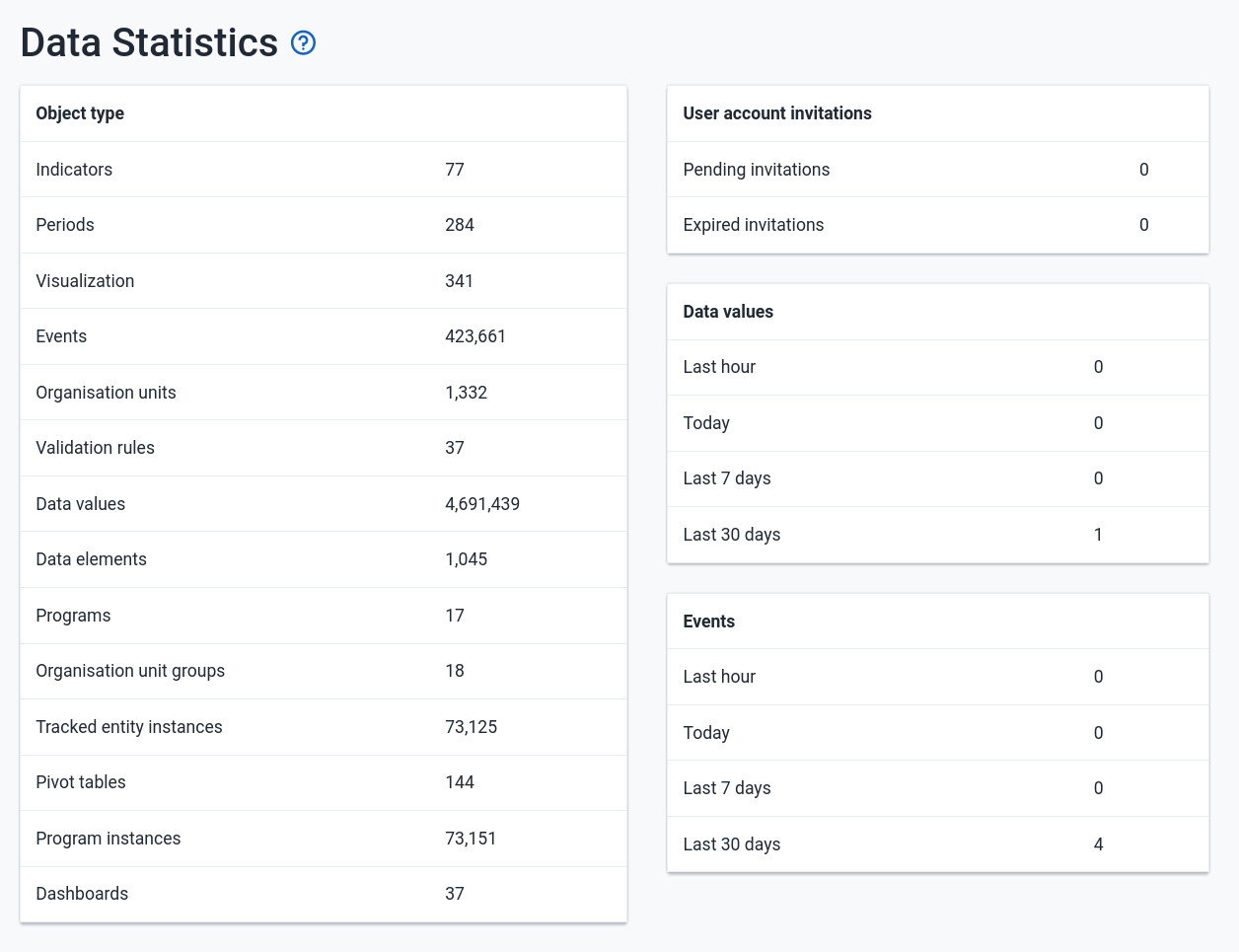
The total number of each type of object is presented in a series of tables with summary statistics of each object.
Lock exceptions
Lock exceptions provide fine-grained control over exemption from a locked data set. After the expiry of the data set, data entry will be denied by default, unless an exception has been granted through the Lock exception interface.
Adding a lock exception
By granting a lock exception, data entry will be enabled even after the expiry period of the data set has passed.
- Open the Data Administration app and click Lock Exception.
- Click Add lock exception at the top of the page
- Select the desired data set, organisation units and time period (see screenshot below)
- Click Add lock exception
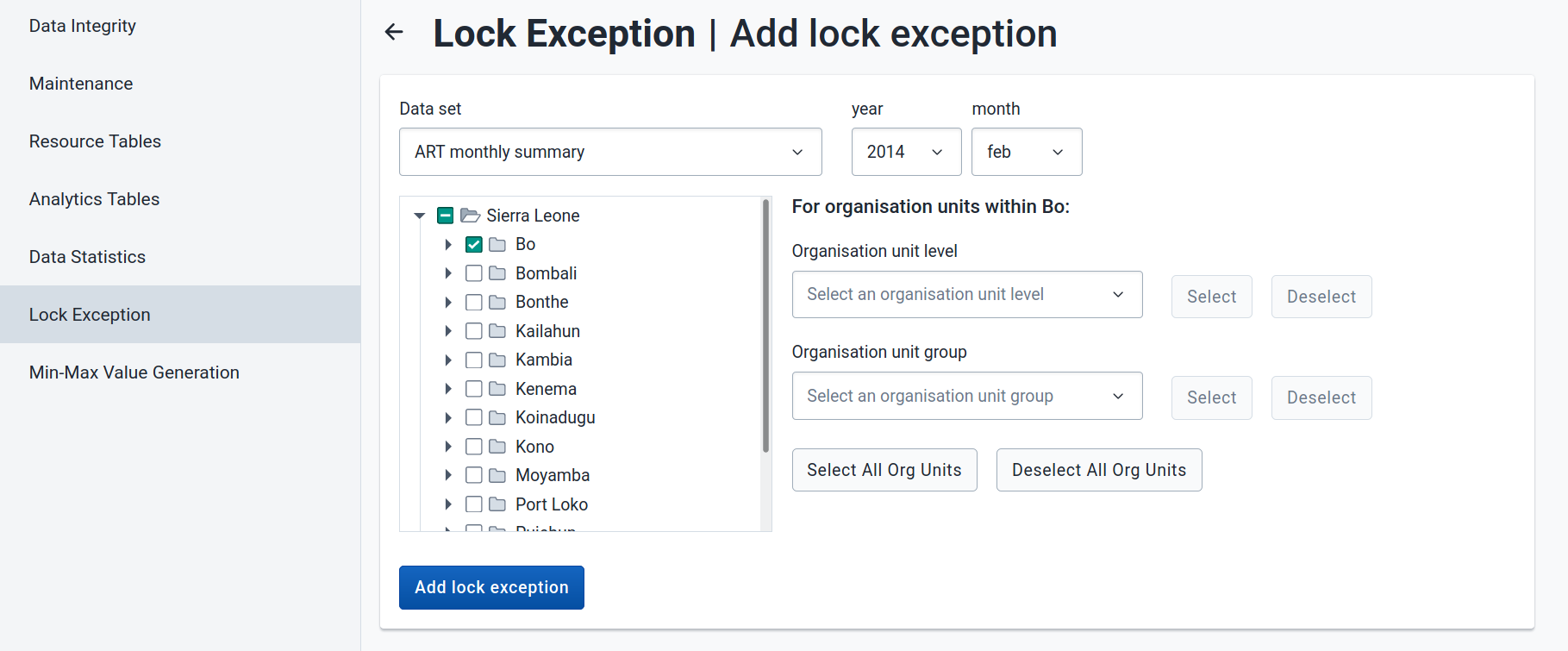
In the example above, a data lock exception would be created for "Bo" for the "ART monthly summary" dataset for "February 2014".
In order to run this function, no extra authority is needed.
Min-Max Value Generation
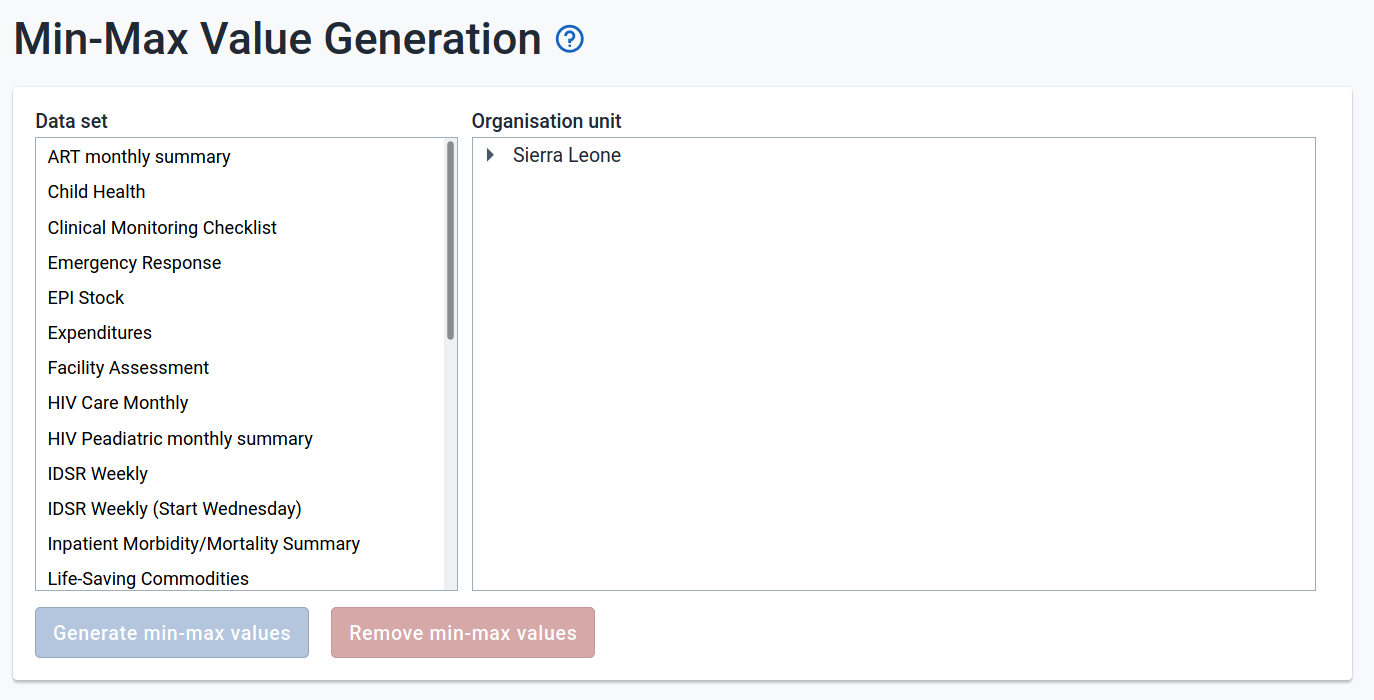
This administrative function can be used to generate min-max values,
which are used as part of the data quality and validation process for
specific organization units and data sets. Simply select the dataset
from the left hand frame, and then select the required organisation
units to generate the min-max values for from the organisational units
selector on the right. Press the "Generate" button to generate or
regenerate all min-max values. Press "Remove" to remove all min-max
values which are currently stored in the database. In order to run this
function, the user MUST have the authority F_GENERATE_MIN_MAX_VALUES.
Cache Statistics
This option is for system administrators only to use. The cache statistics shows the status of the application level cache. The application level cache refers to the objects and query results that the application is caching in order to speed up performance. If the database has been modified directly the application cache needs to be cleared for it to take effect.