Personal access tokens
About personal access tokens
Personal access tokens (PATs) are an alternative to using passwords for authentication to DHIS2 when using the API.
PATs can be a more secure alternative to HTTP Basic Authentication, and should be your preferred choice when creating a new app/script etc.
HTTP Basic Authentication is considered insecure because, among other things, it sends your username and password in clear text. It may be deprecated in future DHIS2 versions or made opt-in, meaning that basic authentication would need to be explicitly enabled in the configuration.
Important security concerns!
Your PATs will automatically inherit all the permissions and authorizations your user has. It is therefore extremely important that you limit the access granted to your token depending on how you intend to use it, see Configuring your token.
Caution
If you only want the token to have access to a narrow and specific part of the server, it is advised to rather create a new special user that you assign only the roles/authorities you want it to have access to.
Server/script and browser contexts
When creating a PAT using the User Profile app, you will be prompted to select the context in which the token will be used.
While both contexts allow you to specify your token's expiration date and allowed HTTP methods, they differ in the additional restrictions that they provide.
Server/script context
The server/script context applies to use cases where your DHIS2 instance will not be accessed by a browser, such as integrations and scripts.
As well as allowing you to set token expiration and allowed HTTP methods, in
this context you are able to restrict the set of IP addresses from which this
token may be used. For example, if you restrict your token to the IP address
91.242.200.159 and a malicious party obtains your token and attempts to use it
from IP address 142.250.187.206, your DHIS2 instance will reject these
malicious requests.
Important
IP address validation relies on the
X-Forwarded-Forheader, which can be spoofed. For security, make sure a load balancer or reverse proxy overwrites this header.
Browser context
The browser context applies to use cases where your DHIS2 instance will be accessed by a web browser, such as public portals and other public access applications.
As well as allowing you to set token expiration and allowed HTTP methods, in this context you are able to restrict the websites in which your token is embedded. This restriction is achieved using the HTTP referer header.
Important
This is not a security feature. The
refererheader can easily be spoofed. This setting is intended to discourage unauthorized third-party developers from connecting to public access instances.
Use cases
PATs are useful in cases where external services and integrations must communicate securely with your DHIS2 instance. As tokens inherit the authorities of their associated account, you can ensure that your integrations are only able to read and modify relevant data.
PATs are also a more secure alternative to HTTP Basic Authentication, and should be your preferred choice when creating a new app/script etc.
Security considerations
Treat your PATs like passwords
Treat your tokens like passwords and keep them secret. If you believe a token has been leaked or stolen, revoke it immediately.
If possible, pass tokens to your scripts and apps as an environmental variable instead of hardcoding them.
IP address validation can be bypassed in some cases
IP address restrictions for server context tokens rely on the
X-Forwarded-For header, which can be spoofed. To prevent spoofing, configure
your load balancer or reverse proxy to overwrite this header.
The referer header is not a security feature
While the referer restrictions for browser context tokens are useful in limiting
abuse, the referer header can be spoofed. Do not rely on referer restrictions
as the referer header is not a security feature.
Creating PATs
Personal access tokens are created using the User Profile app.
-
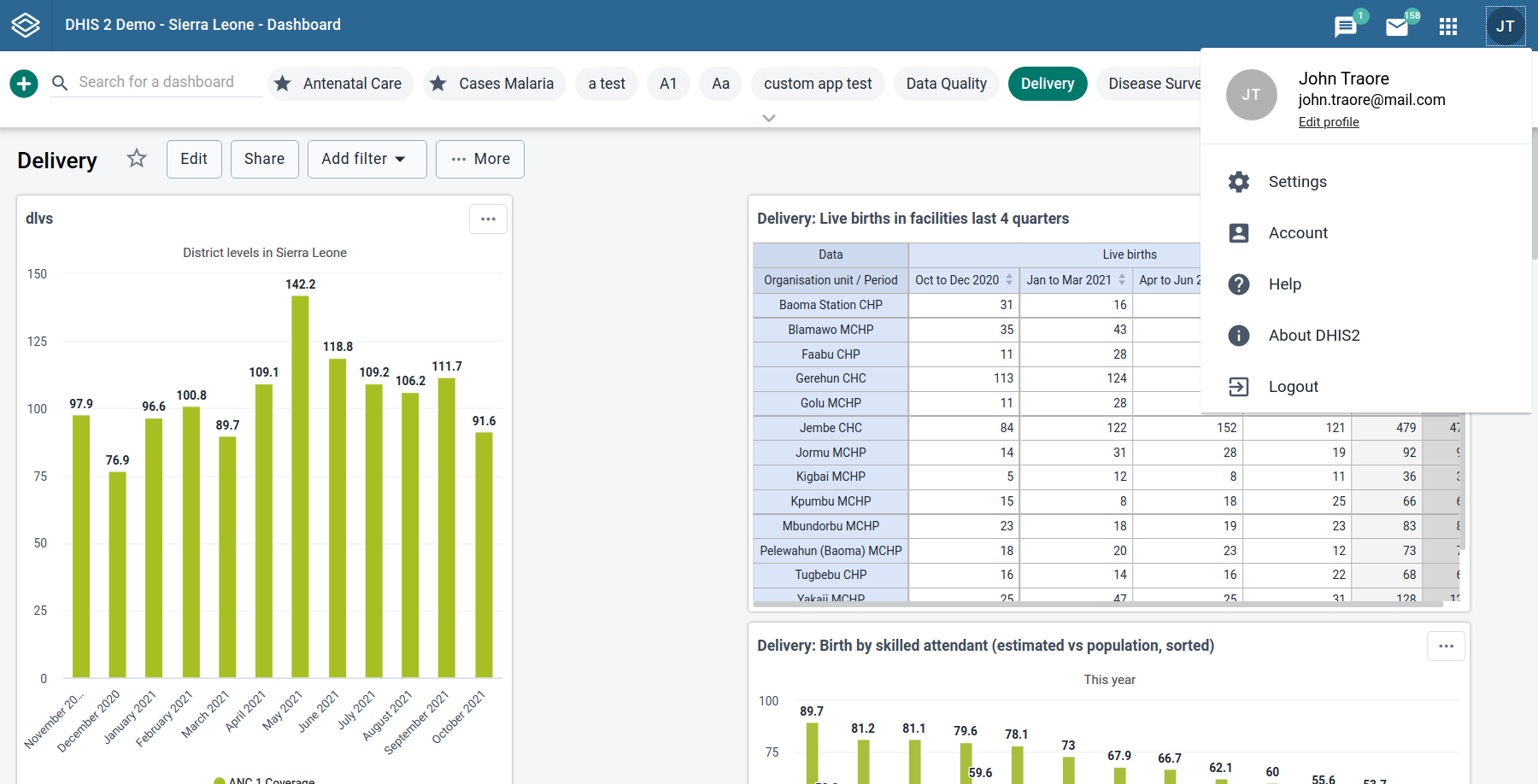
Log in with your username and password and go to your profile page. The User Profile app can be accessed by clicking on your user avatar in top right corner, and choosing "Edit profile" from the dropdown
-
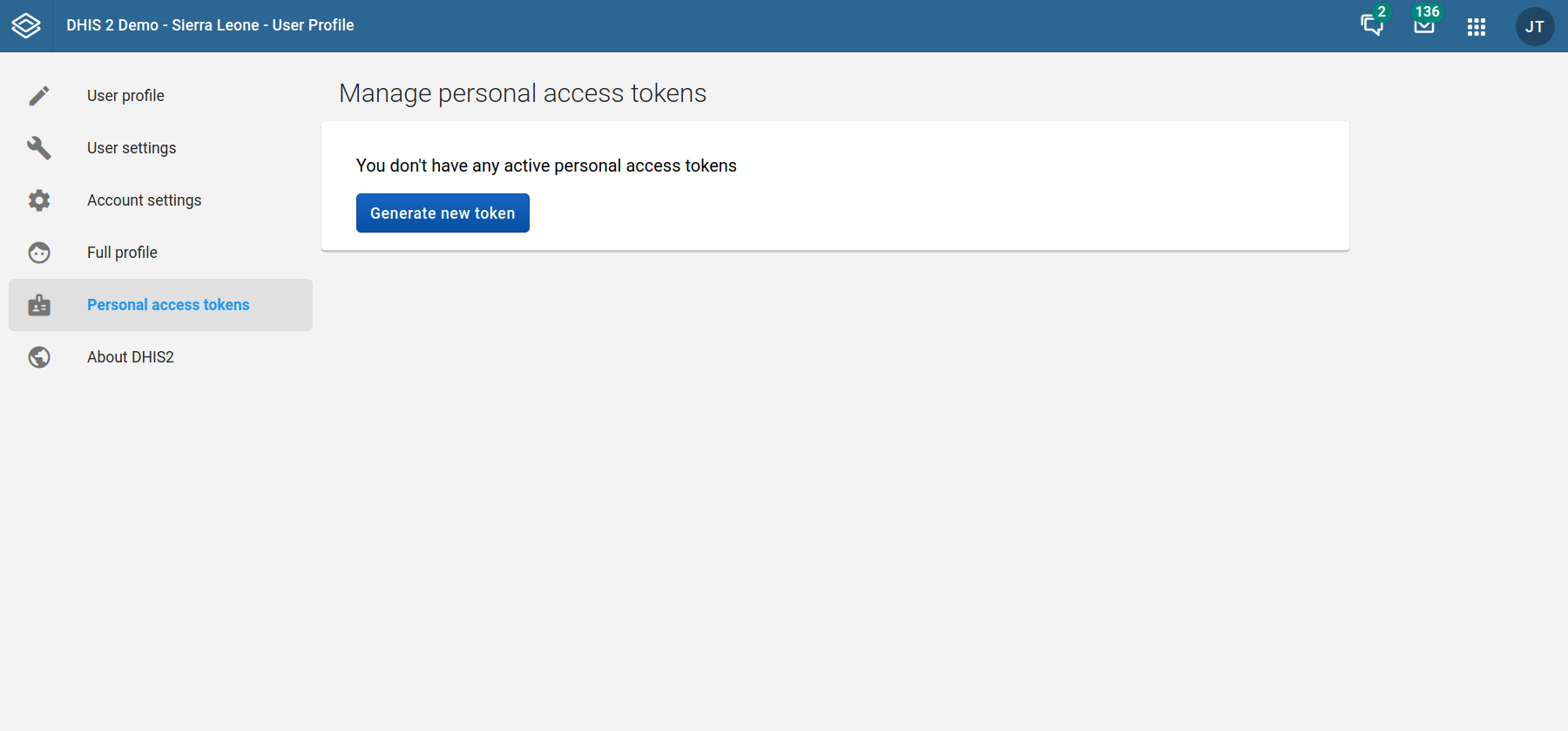
Choose "Personal access tokens" from the left-hand navigation sidebar
-
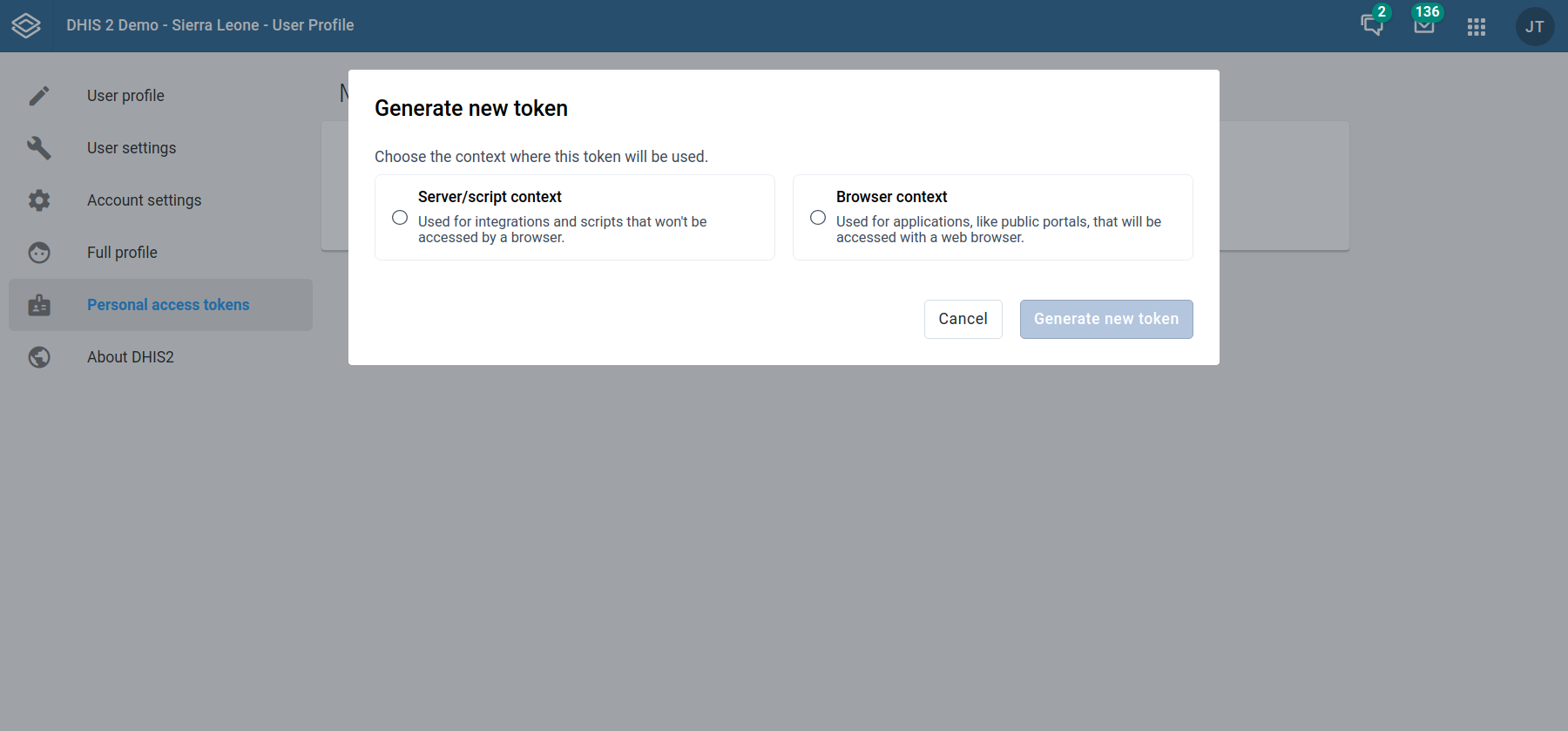
Click the "Generate new token" button to show the new token pop-up
-
Choose the appropriate context for your new token
-
Enter an appropriate expiration date for your token
-
Optionally, configure your token's context-specific restrictions (IP addresses for server contexts or Referers for browser contexts)
-
Optionally, choose which HTTP methods your token should have access to when using your instance's REST API
-
Click the "Generate new token" button
-
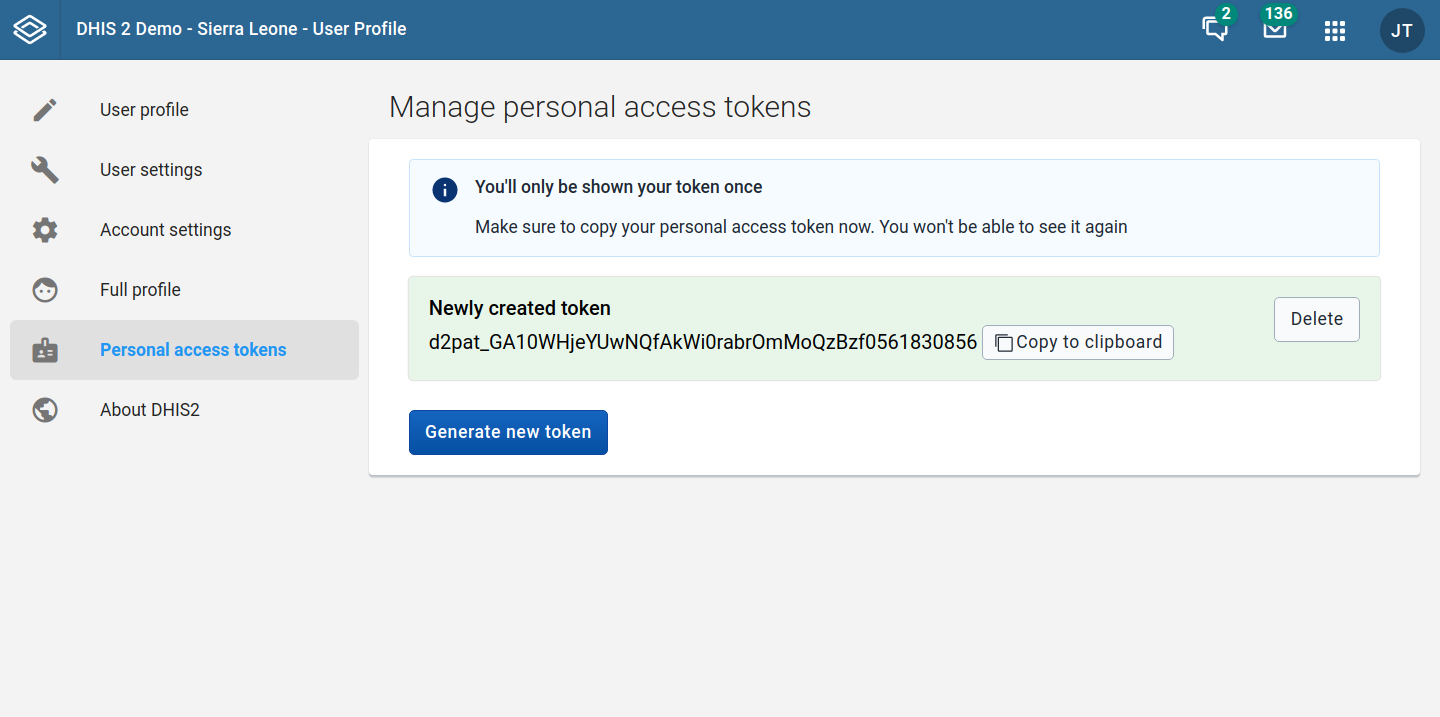
Your token will be generated and shown to you only once, so it is important that you copy the token key now and save it in a secure place for use later.
Important
This generated secret token key will only be shown once, so it is important that you copy the token key now and save it in a secure place for use later. The secret token key will be securely hashed on the server, and only the hash of this secret token key will be saved to the database. This is done to minimize the security impact if someone gets unauthorized access to the database, similar to the way passwords are handled.
Server context
Tokens for server contexts can limit the IP addresses from which they can be used.
These IP addresses can be provided in the "Allowed IP addresses" input area, with one address per line.
Browser context
Tokens for browsers contexts can limit the web pages from which they can be used.
These URLs can be provided in the "Allowed referrers" input area, with one URL per line.
Using PATs
To issue a request with your newly created token, use the Authorization header accordingly.
The Authorization header format is:
Authorization: ApiToken [YOUR_SECRET_API_TOKEN_KEY]
Example using the JavaScript fetch API:
fetch(url, {
  headers: {
    'Authorization': 'ApiToken d2pat_5xVA12xyUbWNedQxy4ohH77WlxRGVvZZ1151814092',
  }
})
Server configuration
Important
Before the DHIS2 2.38 version, the PATs feature is default disabled. To enable PATs, set the
enable.api_token.authenticationproperty toonin the dhis.conf file.