Android aggregate data capture app
Overview
The Data Capture for DHIS2 app allows you to enter data into a DHIS2 server with an Android device. The app downloads instances of forms which are required to enter data from the server, and stores them on the device. This means that you can enter data offline and then upload it to the DHIS2 server when you have network coverage.
Installation
You can easily install the Data Capture for DHIS2 app by logging into the Google play store and searching for "Data Capture for DHIS2"
Logging in
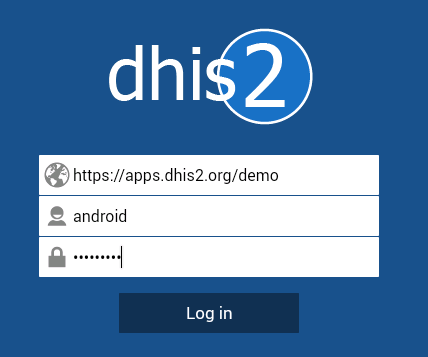
After you install and launch the Data Capture app on your device, when you launch it for the first time, you will be required to enter the server URL address of the DHIS2 server and your user name and password. Be sure to specify the full address of the server and protocol (either https or http). Once you have specified all details, press "Log in" to authenticate with the server.
Entering and saving data
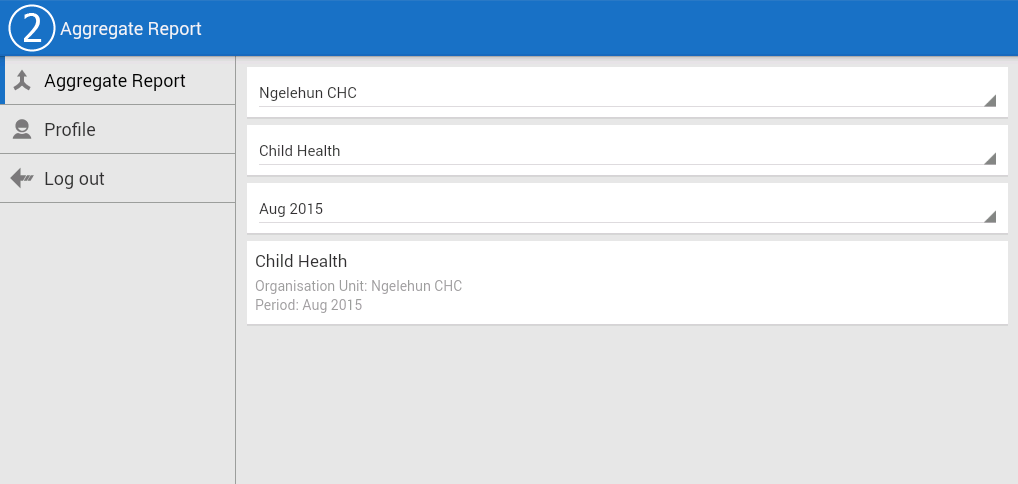
Once you login, you will need to select the organisation unit, dataset and time period for which you wish to enter data. Once you have selected all of this, press the highlighted area to proceed to the data entry screen.
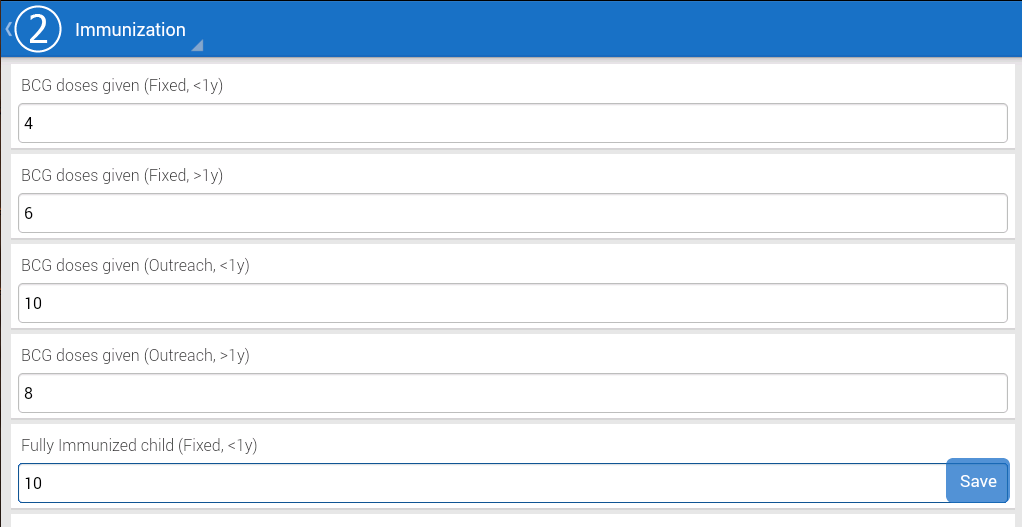
Data entry in the android app is very straight-forward. Data elements are listed along with their category combination option. Just select the field for which you want to enter data by clicking it and entering the correct data value. Values will be saved locally to your device. When you finish entering data, press "Save" and data will be saved to the server.