Android Tracker Capture App
Overview
The Tracker Capture Android app allows you capture, modify and list tracked entity instances with its enrolments and events. The Tracker Capture app works with multiple event-based programs in DHIS2, which handles events linked to registered entities. These programs are suitable for handling disease programmes where multiple visits is required. The Tracker Capture app can be used for disease programmes such as tuberculosis and malaria. However the app is not tied to any specific domain and can potentially be utilized for any scenario of multiple event-based information.
The Tracker Capture app allows you to capture events offline, i.e. without Internet connectivity. The app will automatically synchronize events with the online DHIS2 server automatically when connectivity is present. This makes the app suitable for environments where Internet connectivity is scarce or unstable.
Installing and logging in
The Tracker Capture app can be found on Google Play under the name "DHIS2 Tracker Capture".
Tracker Capture on Google Play
You can download the APK file directly from the GitHub release page.
Tracker Capture GitHub releases
Click on the app to open it after the installation is done. This will bring up the login screen.
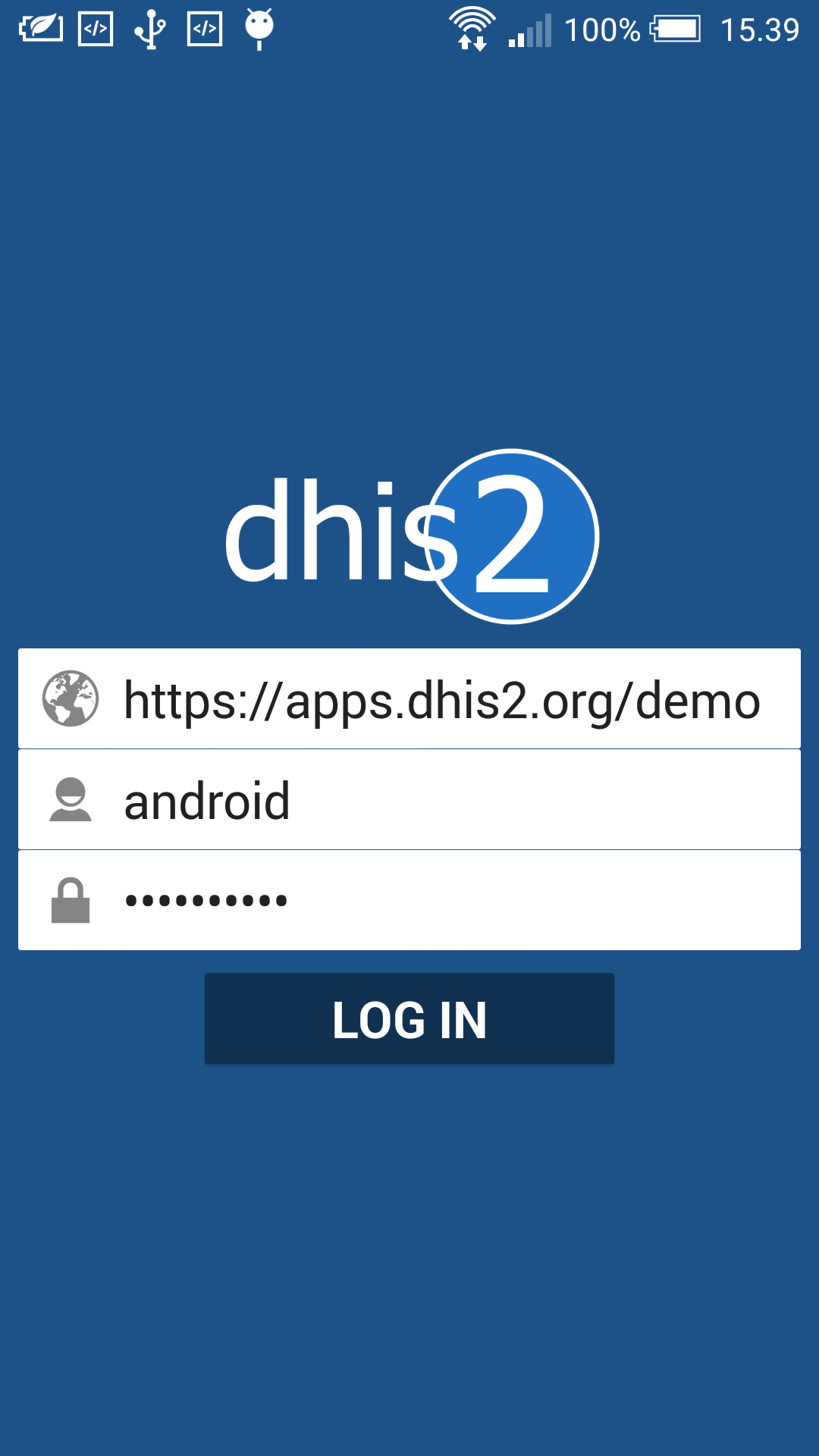
In the URL field, enter the full URL to the DHIS2 instance (server) for which you want to capture and manage data for. Be careful to enter the http:// or https:// part of the URL as well. In the username and password field, enter the username and password for your account at the given DHIS2 instance. Note that you can use this login on the online DHIS2 server as well, i.e. you will be using the same account as you will use when logging into DHIS2 using a Web browser. After logging in the first time, the app will download meta-data from the online instance.
Viewing Enrollments
The main screen will show an overview of enrollments, as well as links to creating new ones. After the first login, there will be no enrollments showing up in the list. Start by selecting organisation unit and program from the selectors at the upper part of the screen. For downloading existing tracker data from the server on to your device, press the middle button.
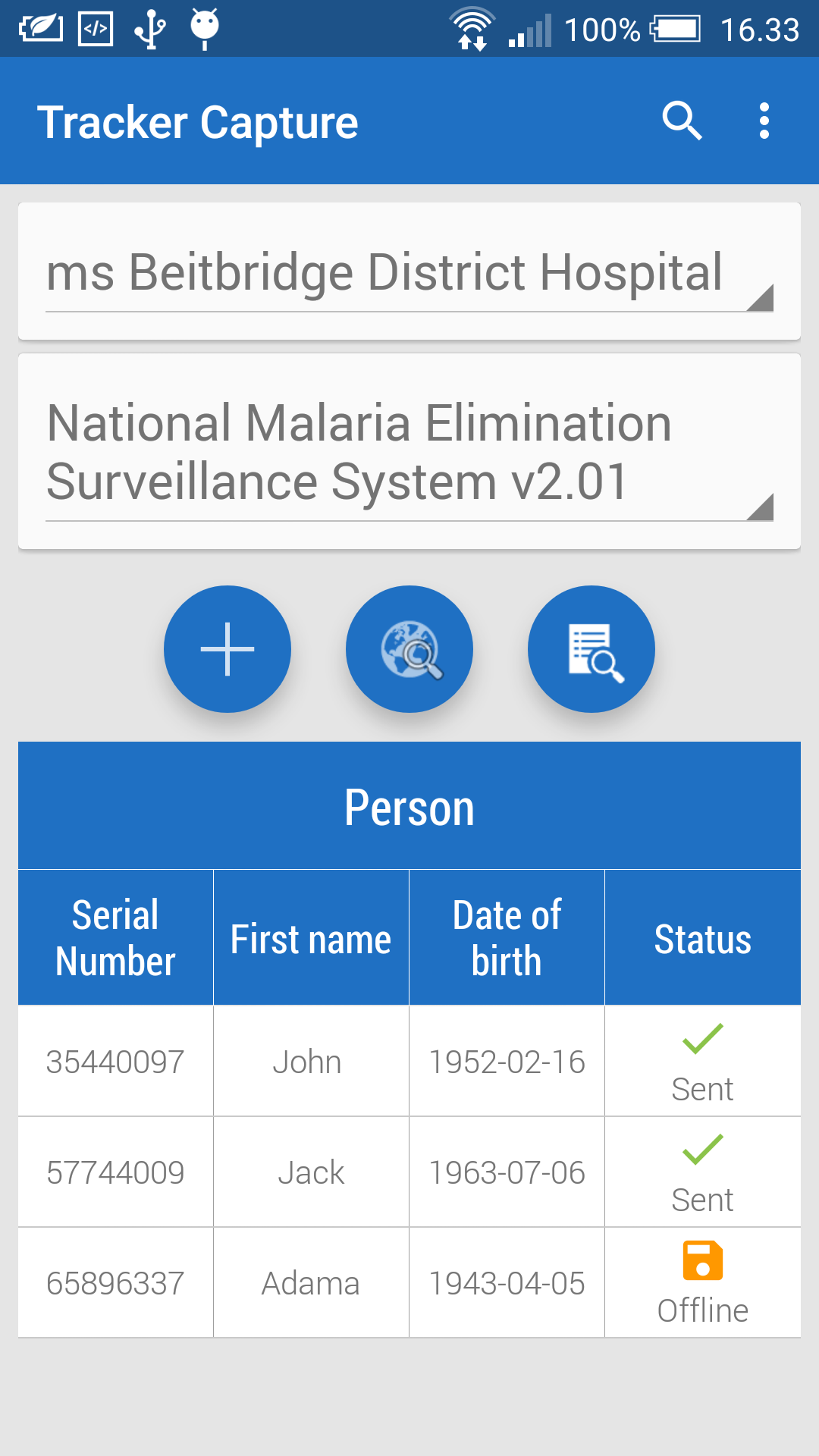
The + button below the selectors will take you to the new enrollment screen. Below this button, all enrollments which have been registered for the selected organisation unit and program will be listed. Each column is configurable, and could show various types of information from each enrollment. The column to the far right shows the synchronization status. Sent means that the enrollment has been uploaded to the server, whereas Offline means that the enrollment is so far only stored at your device. Locally stored data will be synchronized automatically once an Internet connection is present. You can swipe down on the screen in order to trigger a synchronization attempt.
Creating and enrolling a tracked entity instance
Click on the + button to go to the new enrollment form. The new enrollment will be associated with the organisation unit and program you selected previously and the tracked entity instance that you create with this form. The new enrollment screen has a range of functions:
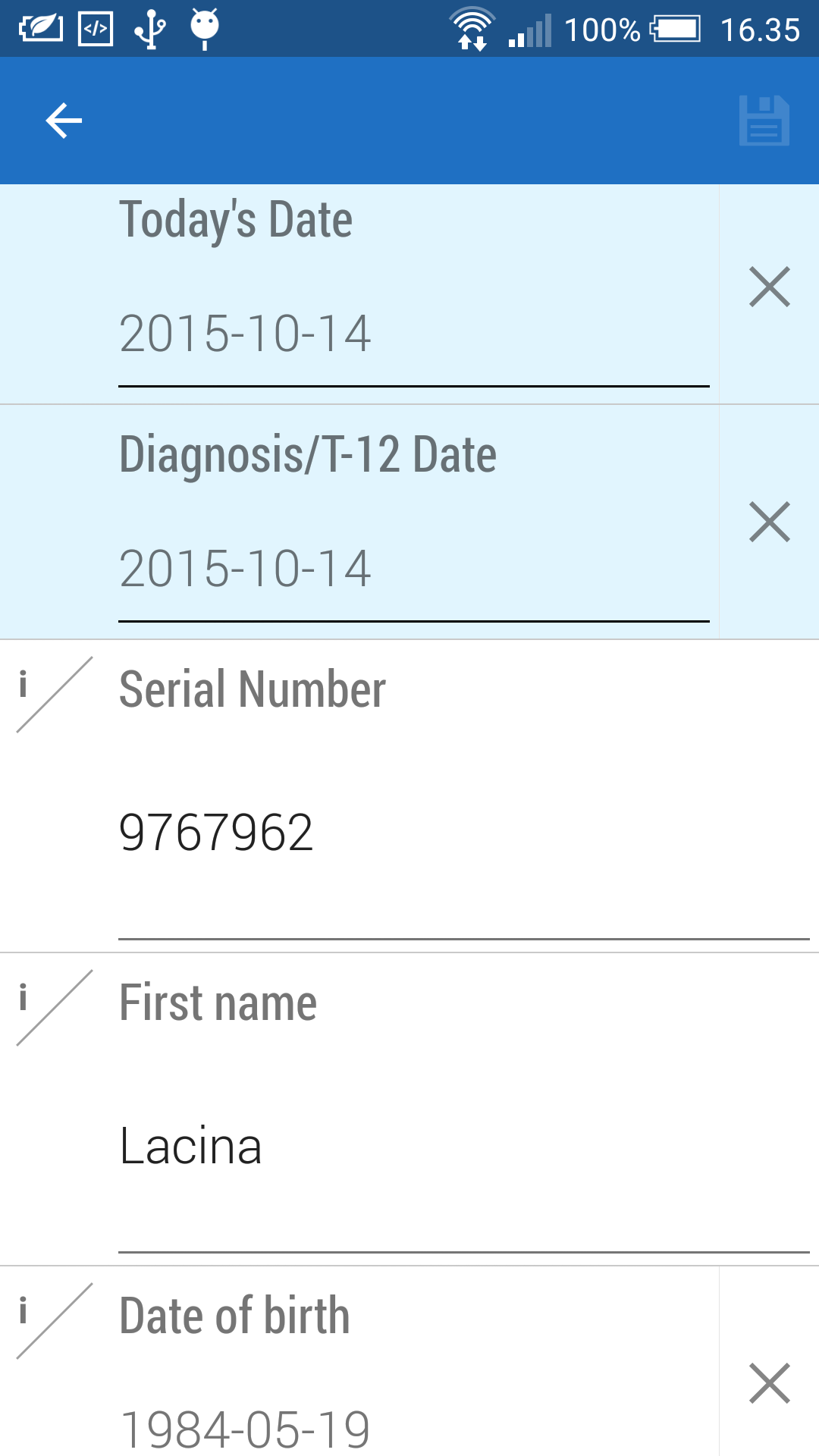
The back button in the top top-left corner will take you back to the main screen (list of enrollments). The save button in the top-right corner will automatically save what you have entered for the enrollment so far.
The first form field contains a date selector and indicators the time of when the enrollment took place. If your program is selected to accept incident date, this will also be displayed. The labels is customizable and will vary from system to system.
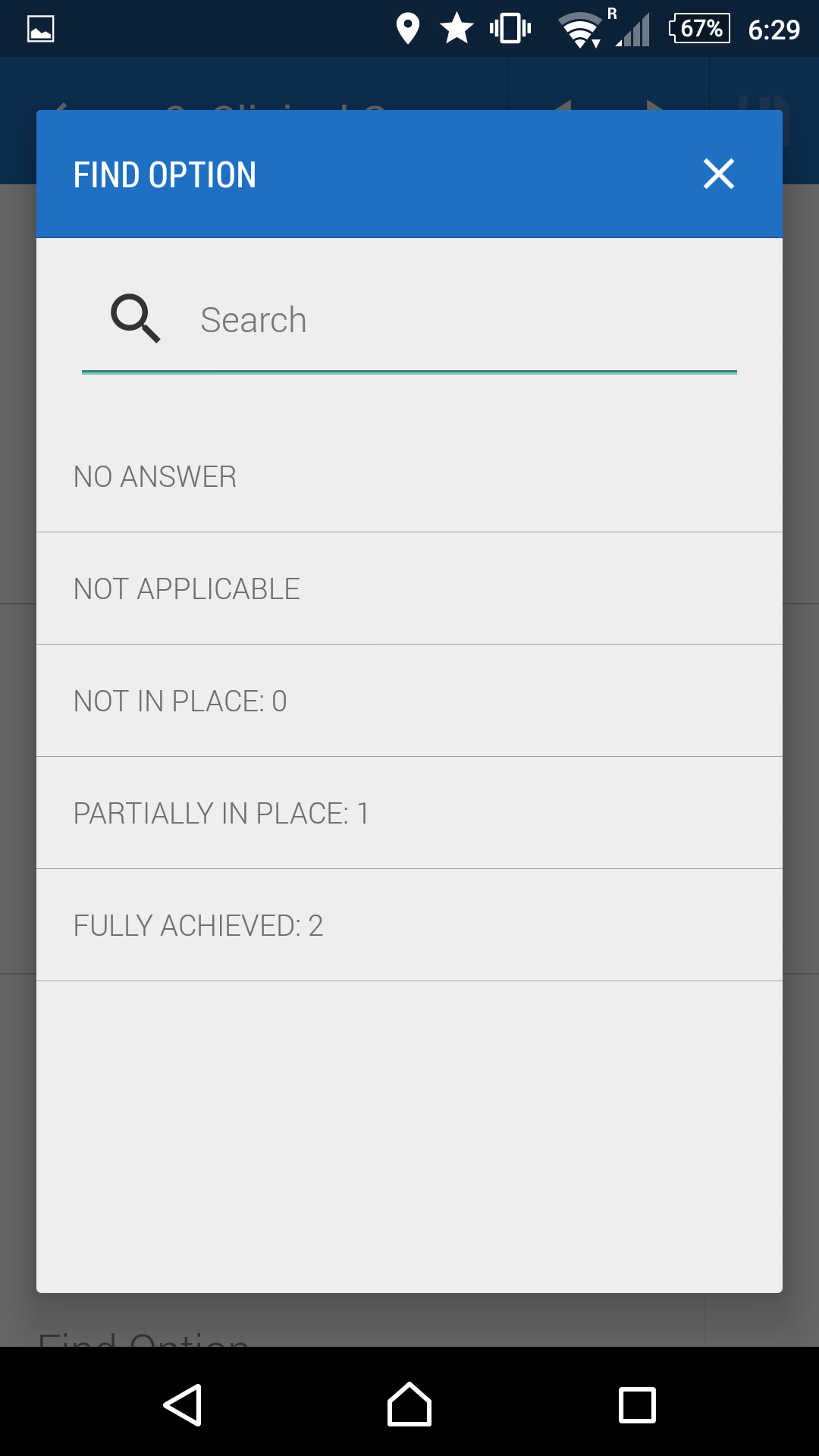
The enrollment data entry form itself will be rendered below. The type of input field selector will depend on the type of the data element representing the input field. For example, you will see date selectors, free text input and numeric input fields. Data elements with predefined options will be rendered using a special dialog where you can either click directly on options or use a text input field to search for a specific option (useful if there is a high number of options).
Downloading tracker data from the online DHIS2 instance
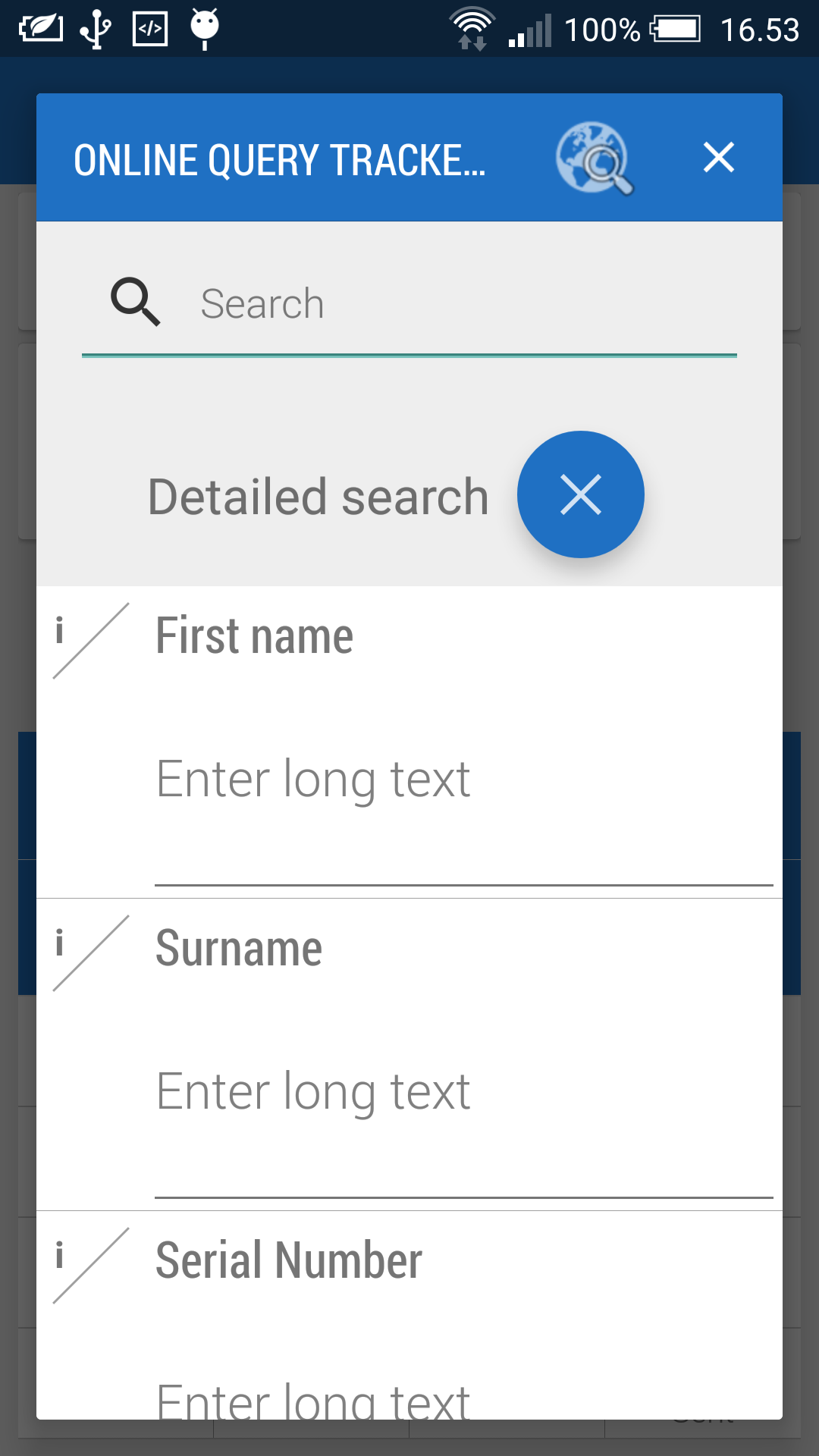
From the main screen press the middle button for querying the server. Since this task requires an Internet connection, please make sure that you have one. This task will query the server with the organisation unit and programme that you have selected from the main screen. After you have pressed this button a dialog appears. In this dialog you can either specify your search by pressing the detailed search button. The detailed search queries the server for tracked entity instances that contains the values that you have specified in your query. When you are finished with your query, press the globe for displaying the results from the server. If you want to display all tracked entity instances from the selected organisation unit and programme, you can simply press the globe button without entering any details. Depending on your Internet connection, this task can take some time so please be patient. A new dialog will present a list of results from your query containing tracked entity instances. Select the tracked entity instances that you want to download by tapping on them (A green tick on the right side will indicate that you have selected the tracked entity instance). After you have selected all your tracked entity instances that you want to download, press the download button, that has an icon with a downwards arrow, at the top of the dialog screen. The tracked entity instances will be downloaded in the background and the synchronization wheel will be displayed. When a tracked entity instance is finished downloading it will appear in the list at the bottom of the main screen.
Modifying enrollment and tracked entity instance attribute values
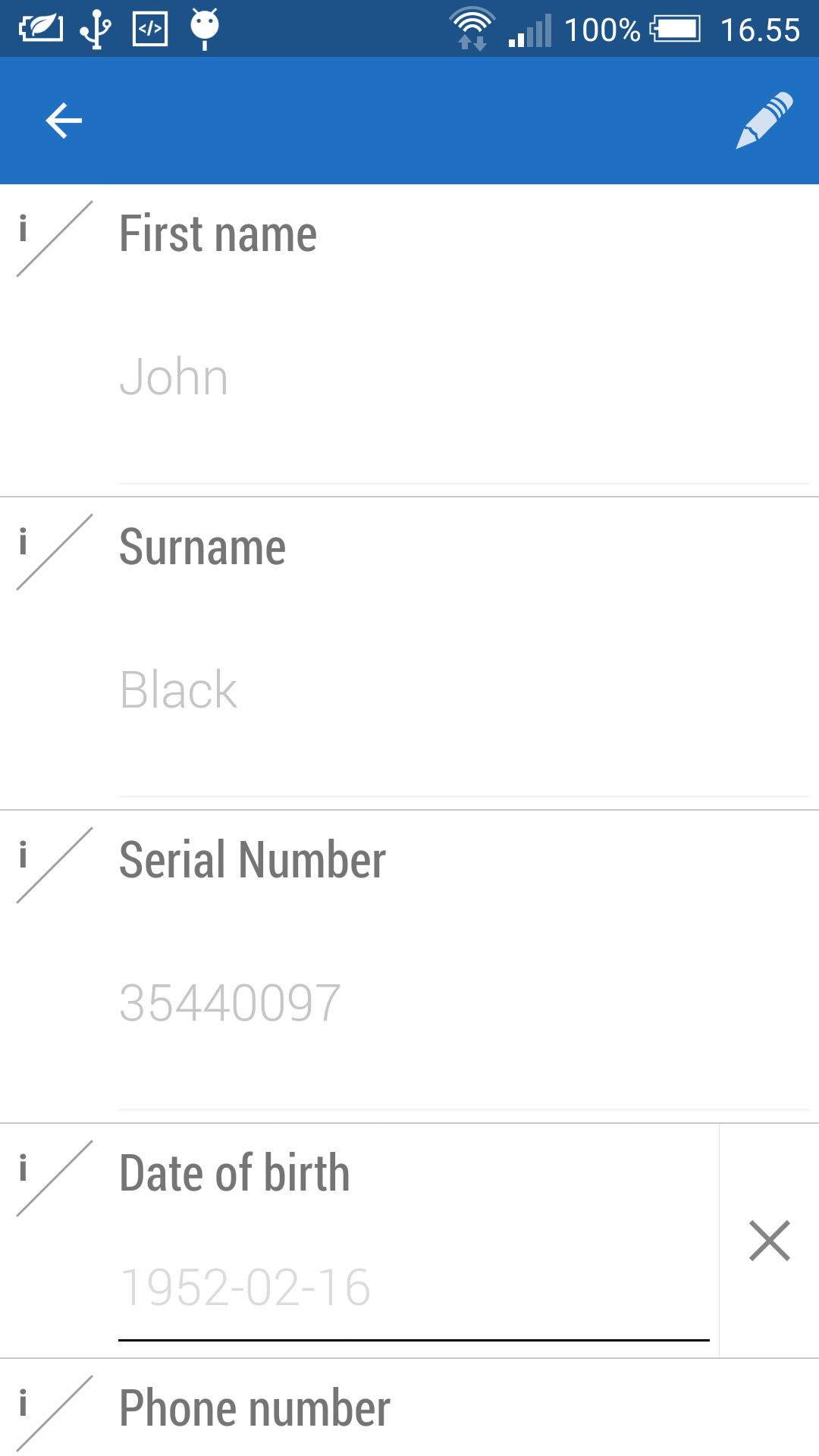
After an enrollment has been created you can go back to or modify the event by simply clicking on it in the enrollment list. This will open an overview screen of the enrolled tracked entity instance with information that has been captured so far. To change the tracked entity instance attribute values that has been captured, simply press the profile box and a new screen will appear. By default the data entry rows will be disabled. To enable the data entry rows press the edit button in the top-right corner. This form will save whenever you do any changes. To change enrollment details, press the Enrollment box from the overview screen. To make the rows editable, press the edit button in the top-right corner. Data is automatically saved whenever changes is done. In the Overview screen you can also choose to complete or terminate the enrollment for the tracked entity instance. When an enrollment is completed or terminated, you will not be able to modify the data
Creating new events for Enrollment
In the main screen click on any enrollment in the list to go into the Overview screen. This screen displays the information of the enrollment and the tracked entity instance with its relationships and active events. Some events is auto generated with the enrollment and therefore is already displayed in the list. This is customizable from the server side. Click on the new button to generate a new event and go to the event form. The new event will be associated with the enrollment that you selected previously. The new event screen has a range of functions:
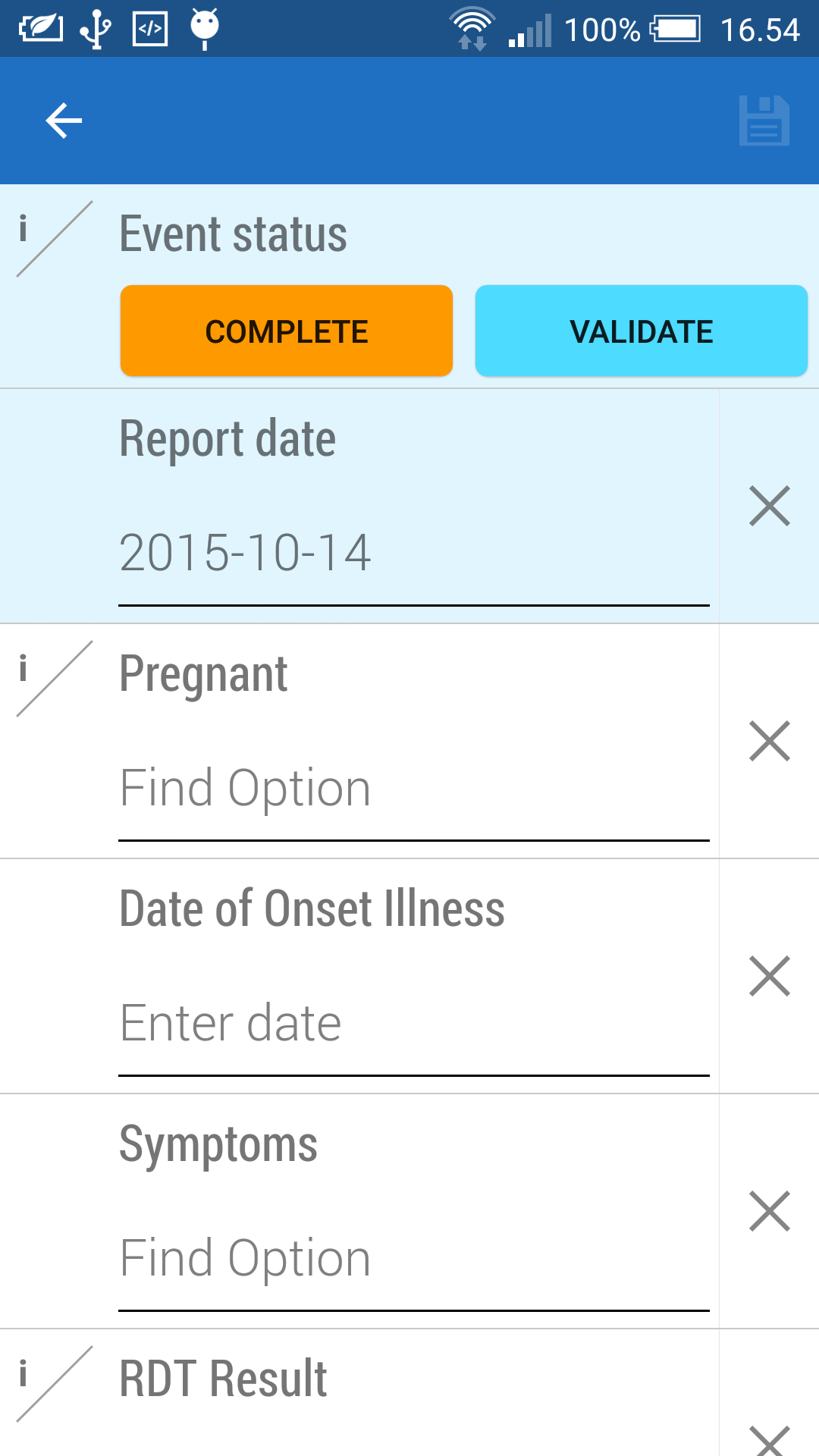
The back button in the top top-left corner will take you back to the main screen (list of events). For programs that have specified sections, these sections will be displayed as a selector at the centre of the top bar. There are also right and left arrows which you can use to move between sections. You can use this selector and arrows to quickly navigate between form sections. The save button in the top-right corner will save what you have entered for the event so far. Data is also saved when you switch between sections.
The Complete button on the second bar will mark the event as complete. The Validate button will trigger a check for validity of the information you have entered based on the validation rules which have been set up for the program.
The first form field contains a date selector and indicators the time of when the event took place. The label is customizable and will vary from system to system. The Enter coordinates field, which will be displayed if the program is configured to store coordinates, lets you use the GPS capability of your device to set the longitude and latitude of your current location by pressing the circle-like symbol to its right. You can alternatively enter the coordinates directly.
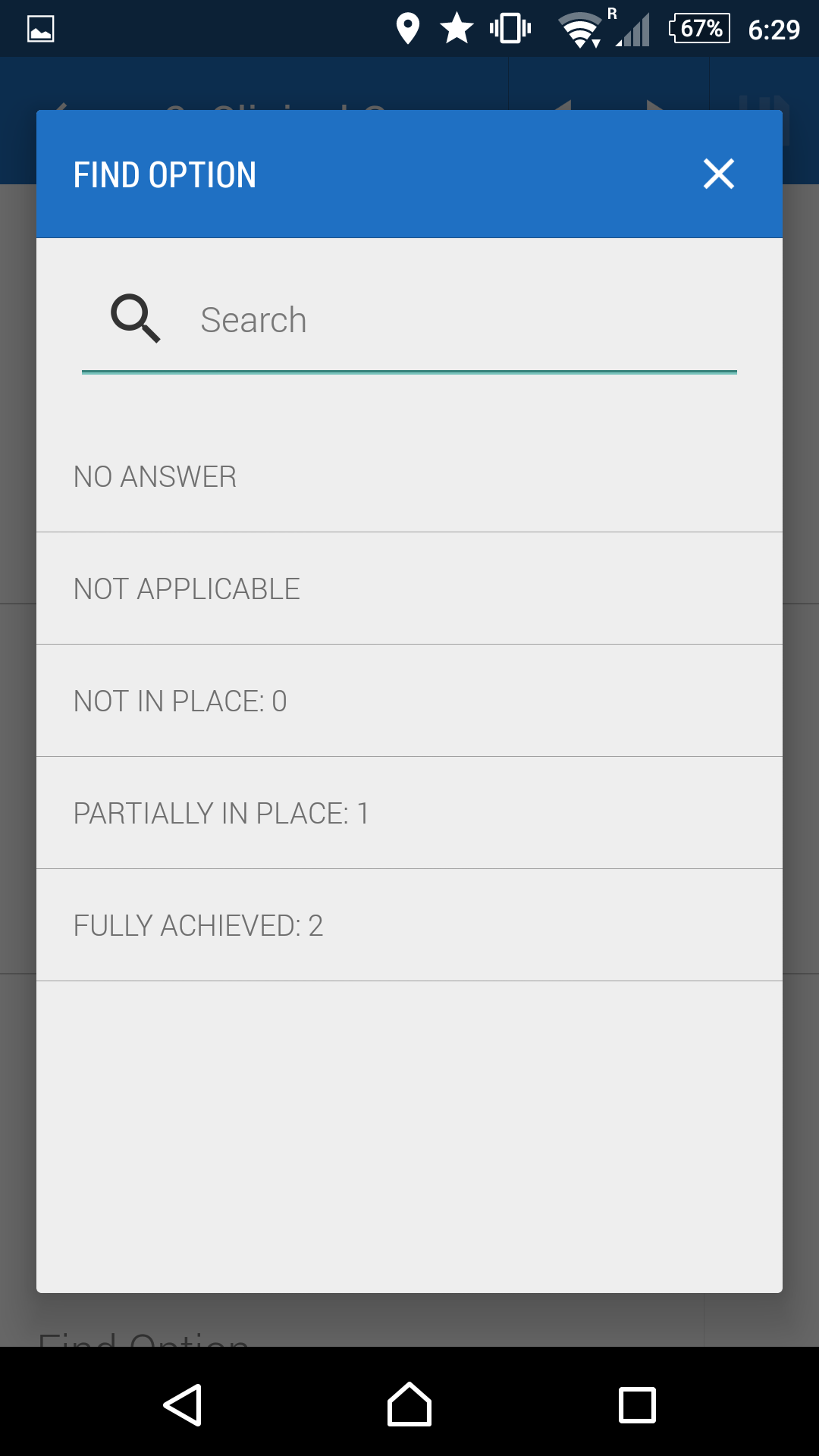
The event entry form itself will be rendered below. The type of input field selector will depend on the type of the data element representing the input field. For example, you will see date selectors, free text input and numeric input fields. Data elements with predefined options will be rendered using a special dialog where you can either click directly on options or use a text input field to search for a specific option (useful if there is a high number of options).
Create relationships
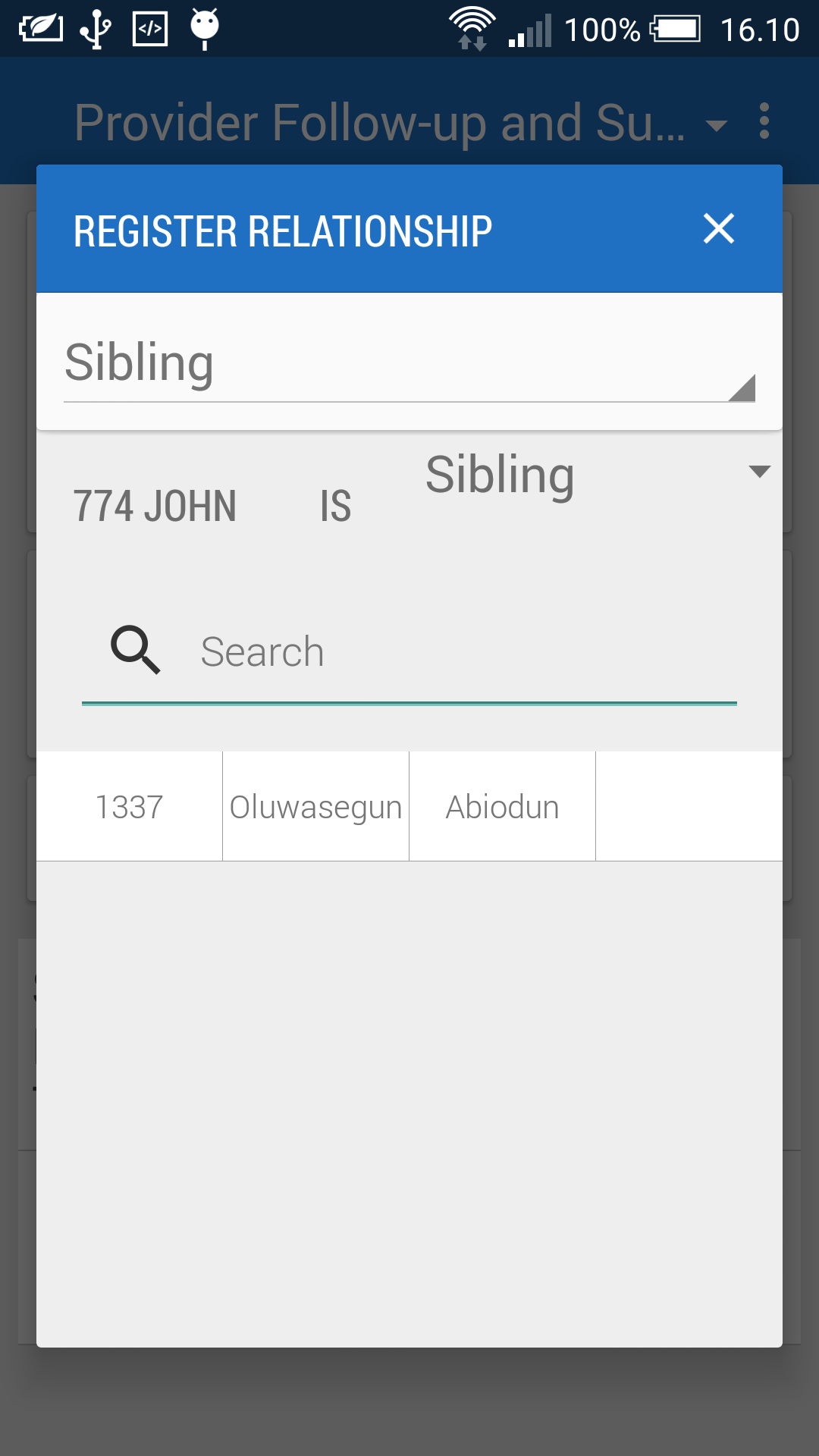
Relationships let you create links between different tracked entity instances. This could be useful in cases where you want to map the relationships between parents and children or persons with malaria breeding sites. To add a new relationship, first press the 'new' button on the relationship box. Now a dialog is presented where you can choose which relationship you want to create from the 'Select relationship type' input field. Below there is a list of tracked entity instances that are already enrolled in the same programme and thus can be chosen. After choosing a tracked entity instance and confirming the relationship then it will show up in the Overview screen.
Settings
The settings screen lets you do configure synchronization frequency and log out.
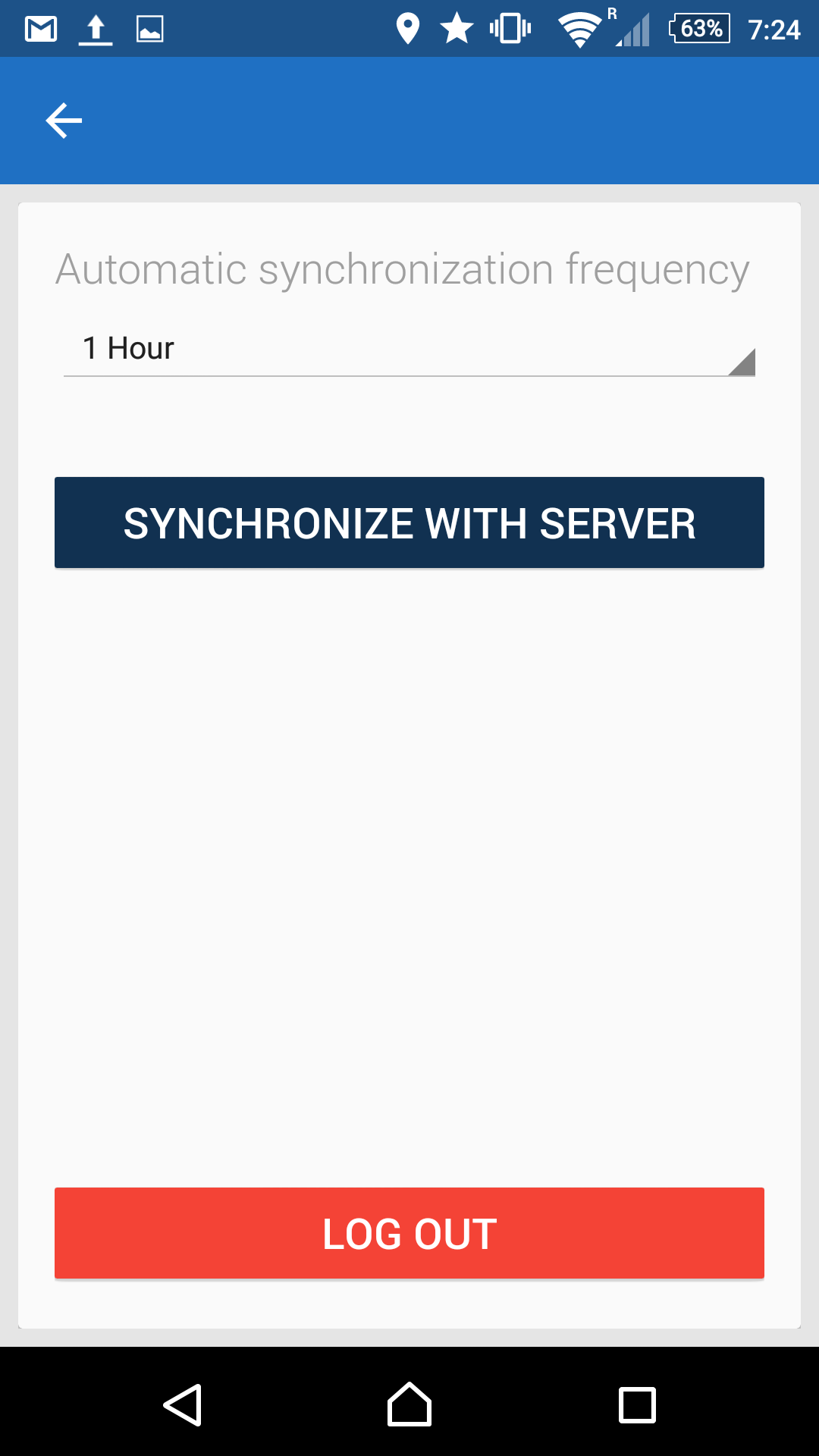
The frequency of automatic synchronization attemps can be set form the drop-down, where options range from one minute to one day. This affects the battery usage and bandwidth consumption. The default of one hour is a sensible choice.
The log out button will log you out of the app, and request you to enter the login information again. You are not intended to log out of the application between each session. This is mostly useful when you want to log into another DHIS2 online instance.