DHIS2 Login User Manual
1. Introduction
This user manual provides step-by-step guidance on how to log in to the DHIS2 (District Health Information Software 2) system. It is intended for DHIS2 users such as data entry operators, health workers, supervisors, and administrators.
2. System Requirements
Before logging in, ensure the following:
-
A computer, tablet, or smartphone
-
Stable internet connection
-
A supported web browser:
- Google Chrome (recommended)
- Mozilla Firefox
- Microsoft Edge
- Safari
-
Valid DHIS2 username and password
3. Accessing the DHIS2 System
-
Open your preferred web browser.
-
Enter the DHIS2 system URL in the address bar (for example):
https://erecord.hmis.gov.np -
Press Enter.
-
The DHIS2 login page will appear.
4. DHIS2 Login Screen Overview
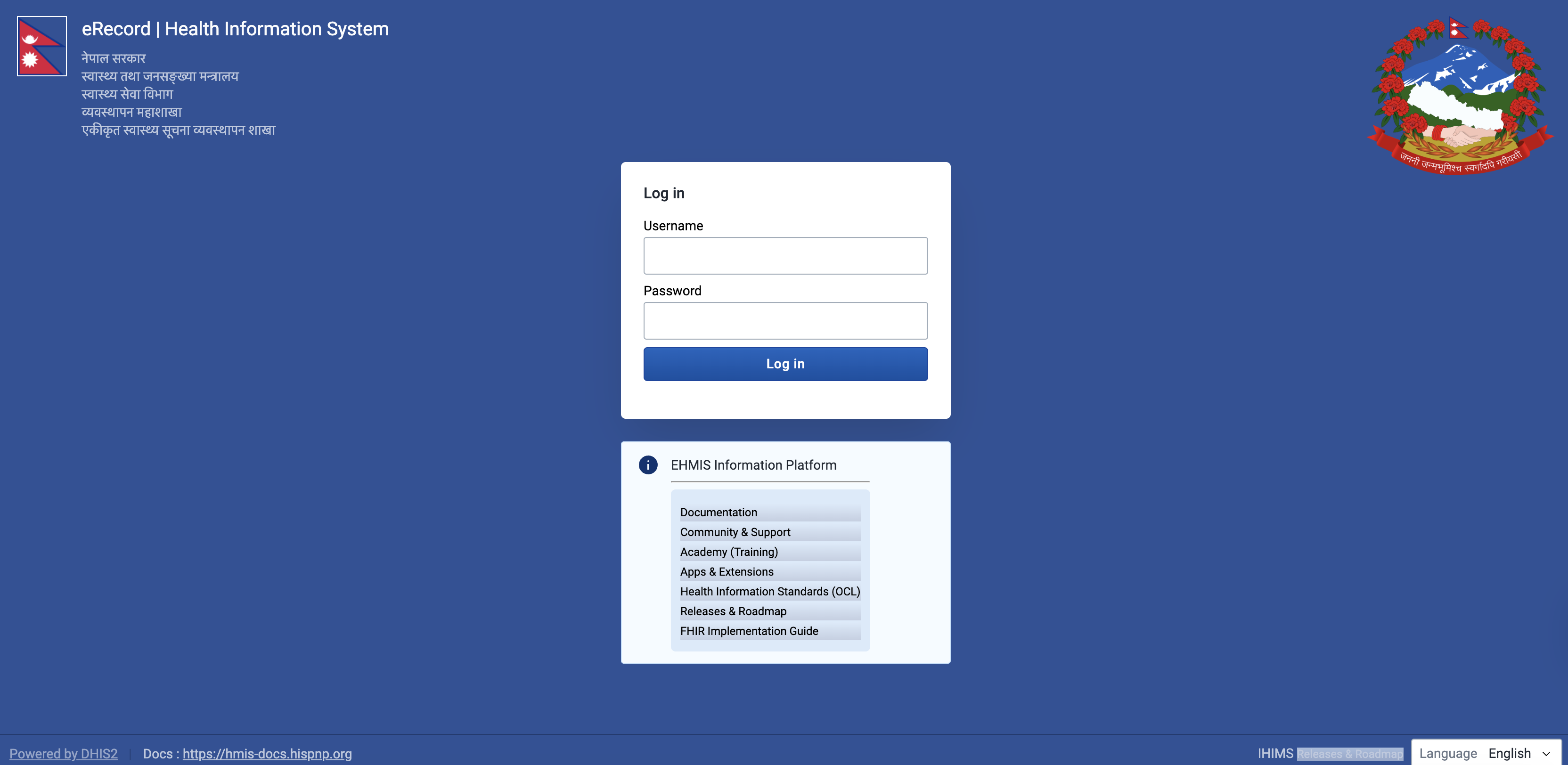
The DHIS2 login screen typically contains:
- Username field – Enter your assigned username
- Password field – Enter your password
- Log in button – Click to access the system
- Language selector (if enabled)
5. How to Log In
Follow these steps to log in:
-
Click on the Username field and type your username.
-
Click on the Password field and type your password.
- Passwords are case-sensitive.
-
Click the Log in button.
-
If the credentials are correct, the DHIS2 dashboard will load.
6. First-Time Login
If you are logging in for the first time:
-
You may be prompted to change your password.
-
Choose a strong password that:
- Has at least 8 characters
- Includes uppercase and lowercase letters
- Includes numbers and special characters
-
Save the new password securely.
7. Forgot Password
If you forget your password:
- Click on Forgot password? (if enabled).
- Enter your registered username or email address.
- Follow the instructions sent to your email.
If password recovery is not enabled, contact your DHIS2 system administrator.
8. Common Login Errors and Solutions
8.1 Invalid Username or Password
- Ensure there are no typing errors.
- Check Caps Lock is off.
- Verify your credentials with the system administrator.
8.2 Account Disabled
- Your account may be deactivated due to inactivity or security reasons.
- Contact the system administrator to reactivate it.
8.3 Page Not Loading
- Check your internet connection.
- Try refreshing the page.
- Clear browser cache or try a different browser.
9. Security Best Practices
- Do not share your username or password.
- Always log out after using DHIS2, especially on shared devices.
- Change your password regularly.
- Avoid saving passwords in public browsers.
10. Logging Out of DHIS2
- Click on your profile icon (top-right corner).
- Select Log out.
- Close the browser window.
11. Support and Help
For login issues or access requests:
-
Contact your DHIS2 System Administrator
-
Provide the following details:
- Username
- Organization Unit
- Description of the issue
12. Document Information
- Document Title: DHIS2 Login User Manual
- Version: 1.0
- Last Updated: 2026
End of Document