DHIS2 Logout User Manual
1. Introduction
This user manual explains how to safely log out of the DHIS2 (District Health Information Software 2) system. Proper logout is important to protect data security, especially when using shared or public devices.
2. Why Logging Out Is Important
Logging out of DHIS2 helps to:
- Prevent unauthorized access to health data
- Protect your user account and permissions
- Ensure data confidentiality and system security
- Avoid accidental data entry under the wrong user account
3. When to Log Out
You should always log out:
- After completing your work in DHIS2
- Before closing the browser
- When using a shared or public computer
- Before leaving your workstation
4. How to Log Out of DHIS2
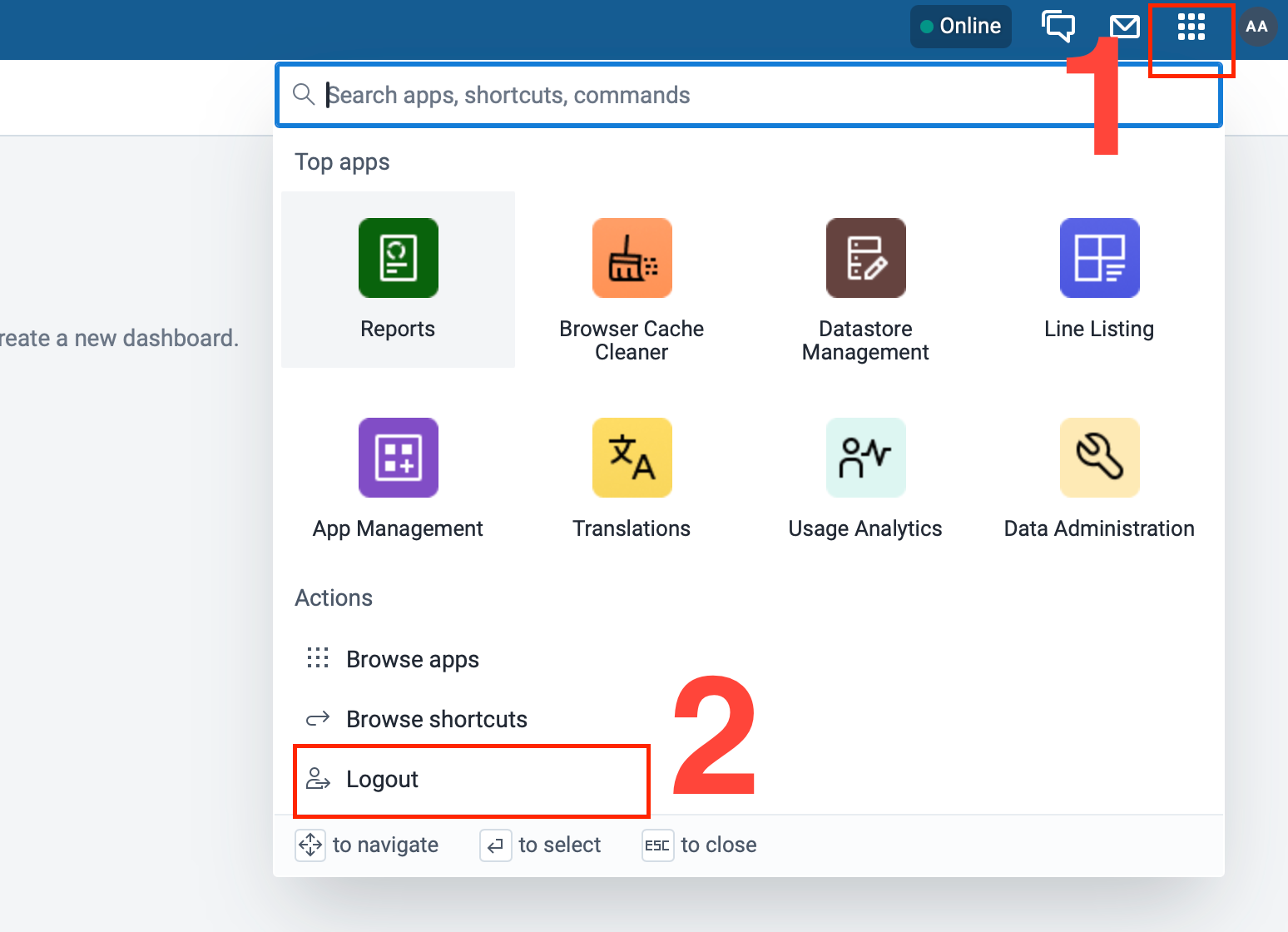
Follow these steps to log out safely:
- Ensure all your work is saved.
- Look at the top-right corner of the DHIS2 screen.
- Click on your profile icon (user avatar or username).
- A dropdown menu will appear.
- Click Log out.
- You will be redirected to the DHIS2 login page.
5. Logging Out on Shared Devices
If you are using a shared device:
- Always confirm you are redirected to the login page
- Close the browser completely after logging out
- Do not allow the browser to save your password
6. Common Logout Issues and Solutions
6.1 Log out Option Not Visible
- Resize the browser window
- Ensure you are logged in
- Try refreshing the page
6.2 Browser Closed Without Logging Out
- DHIS2 may keep the session active for some time
- Always log out manually to avoid security risks
6.3 Session Timeout
- DHIS2 may automatically log you out after inactivity
- Log in again to continue your work
7. Security Best Practices
- Never leave DHIS2 open when unattended
- Do not share your login session with others
- Log out even on personal devices
- Change your password regularly